
 Download for iOS & Mac
Connector
Add Trackly as a Connector in Claude
Search 128K+ jobs, view companies, and track applications, all from Claude. No CLI install, no API keys, no config files. Just a URL.
https://mcp.usetrackly.app/api/mcpAdd Custom Connector
Go to claude.ai, click Connectors in the left sidebar, then click '+' and select 'Add custom connector'. Enter Trackly as the name and paste the URL below.
https://mcp.usetrackly.app/api/mcp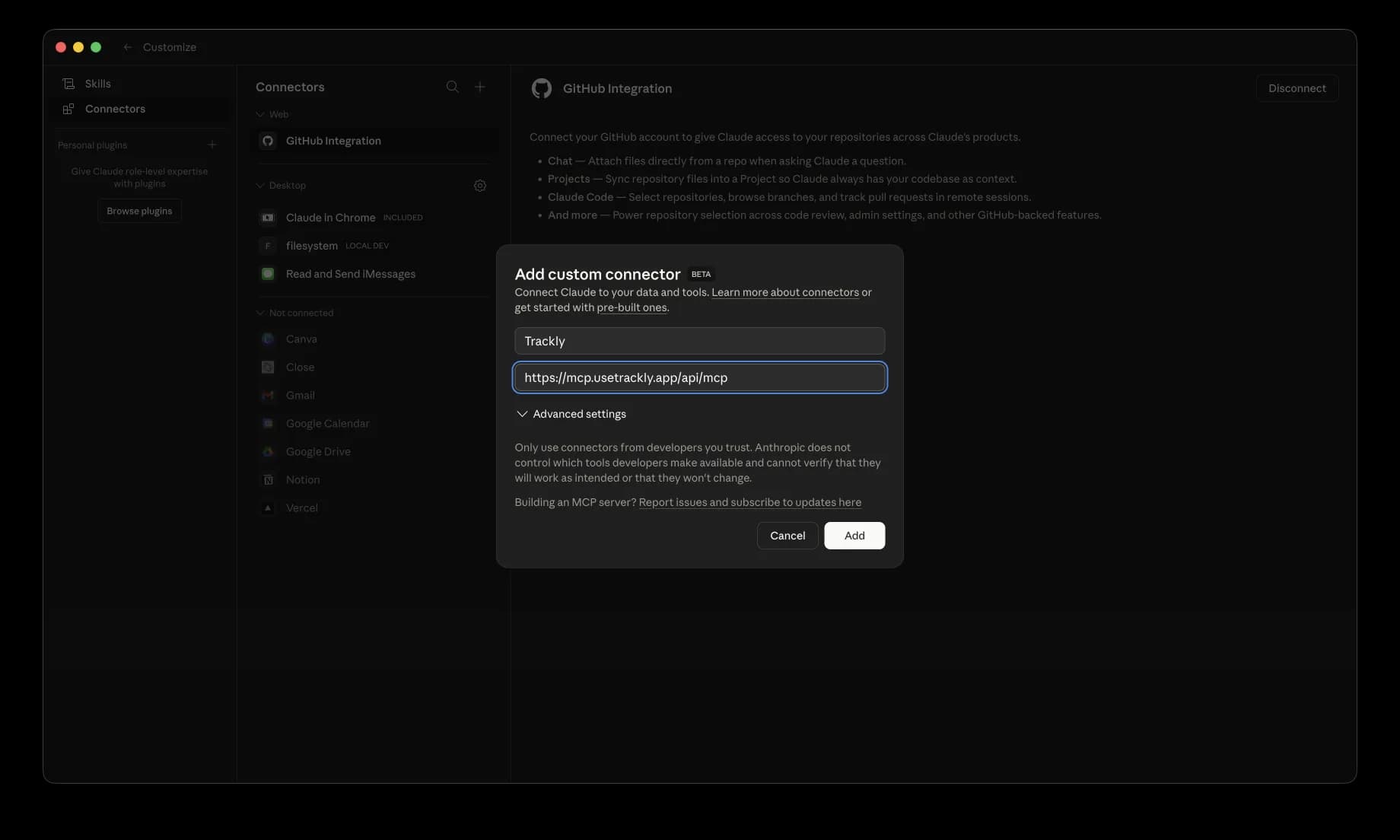
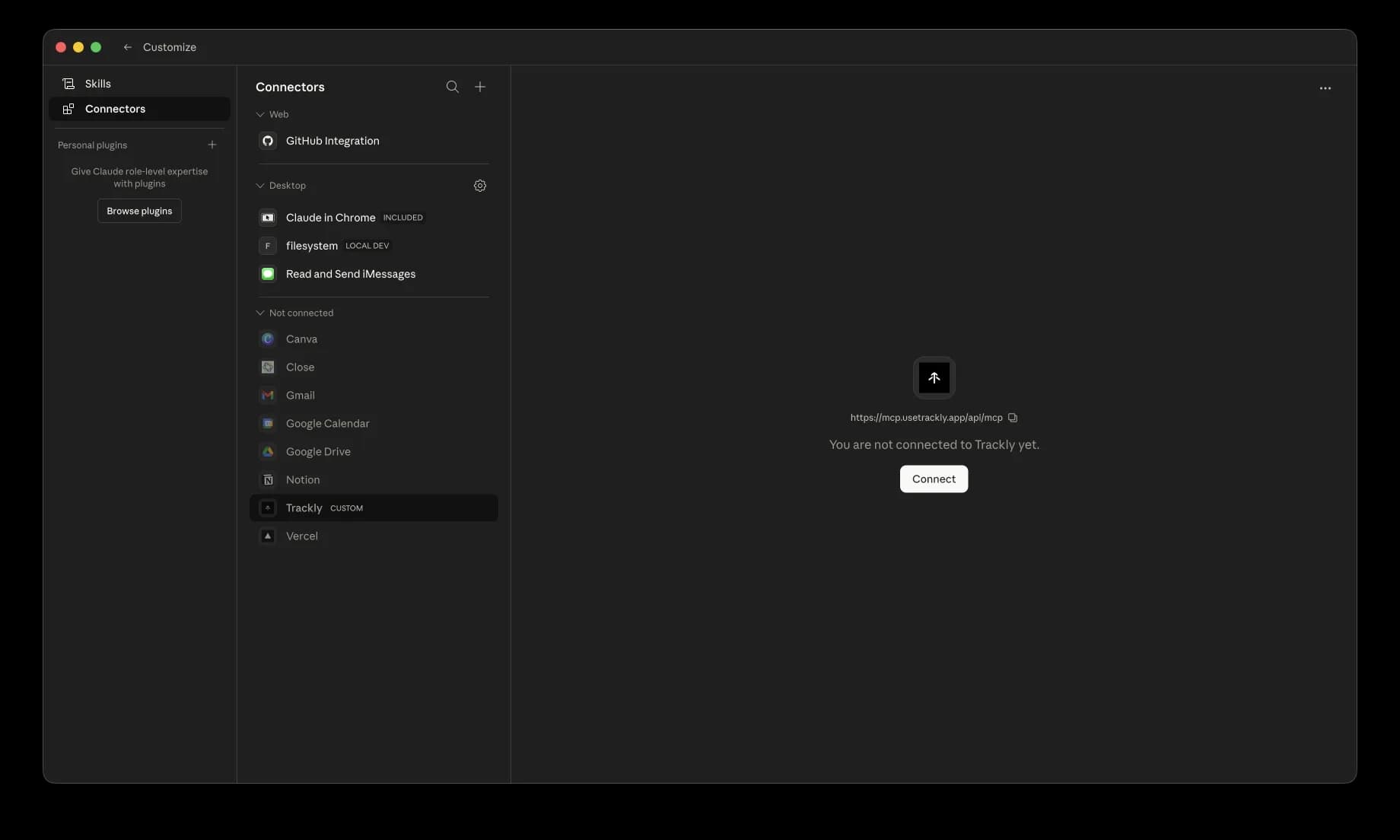
Find Trackly and Connect
Trackly appears under 'Not connected' with a CUSTOM tag. Select it and click Connect.
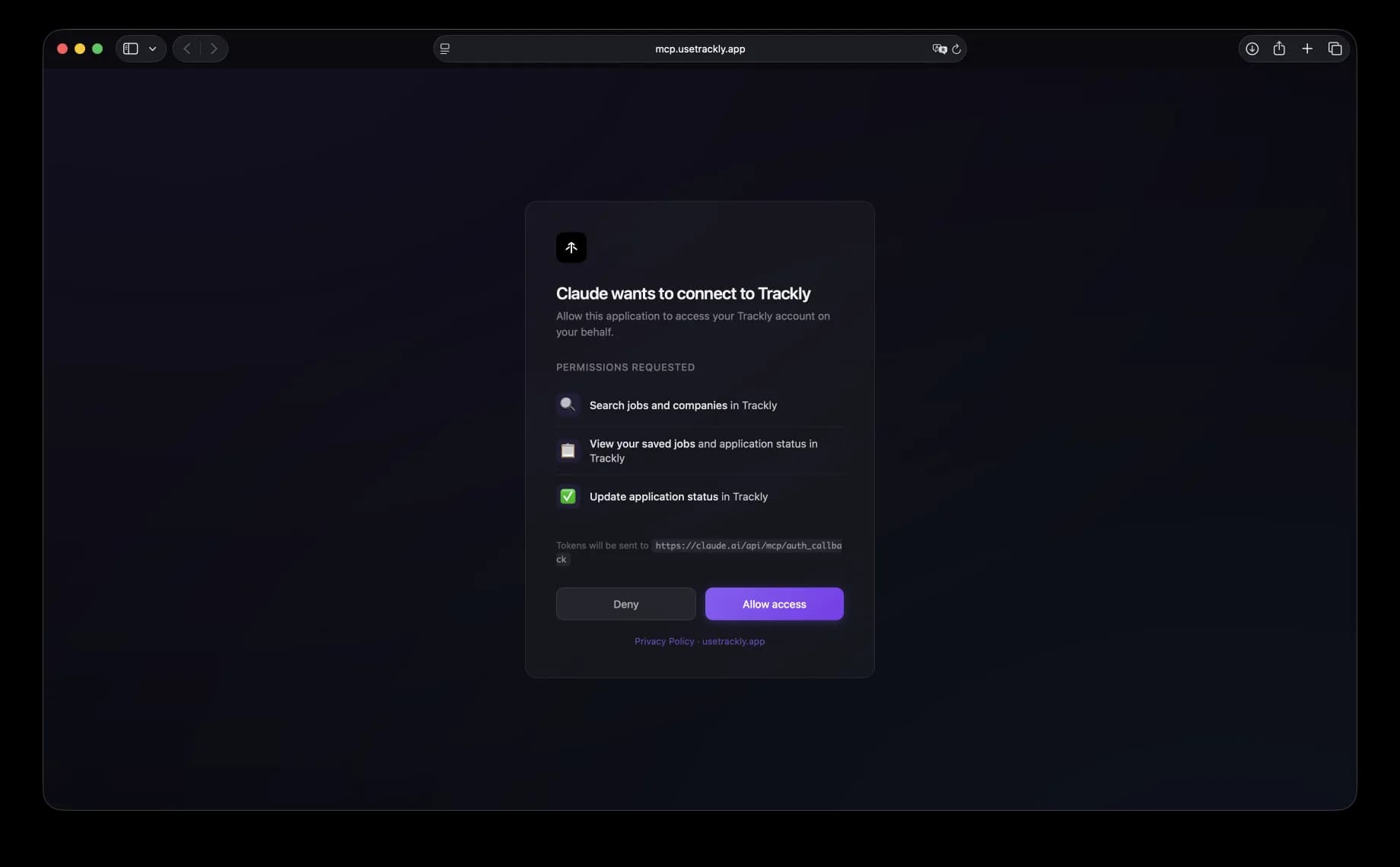
Allow Access
A browser window opens with the Trackly consent page. Review the three permissions (search jobs and companies, view saved jobs and application status, update application status) and click Allow access.
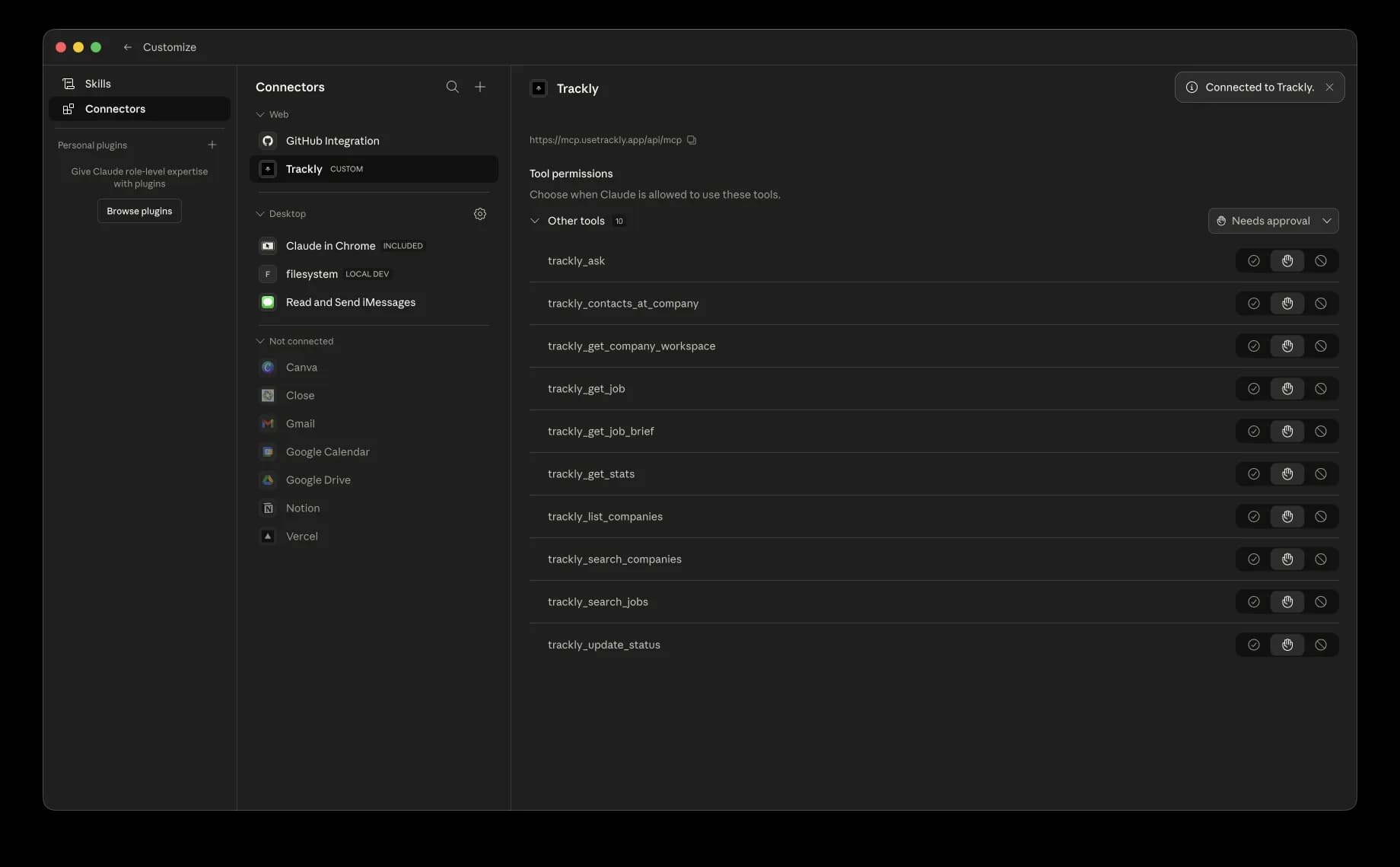
Connected: 10 Tools Available
Trackly is now connected. All 10 tools (trackly_ask, trackly_search_jobs, trackly_contacts_at_company, and more) show up in the tool permissions panel.
Enable in Co-Work
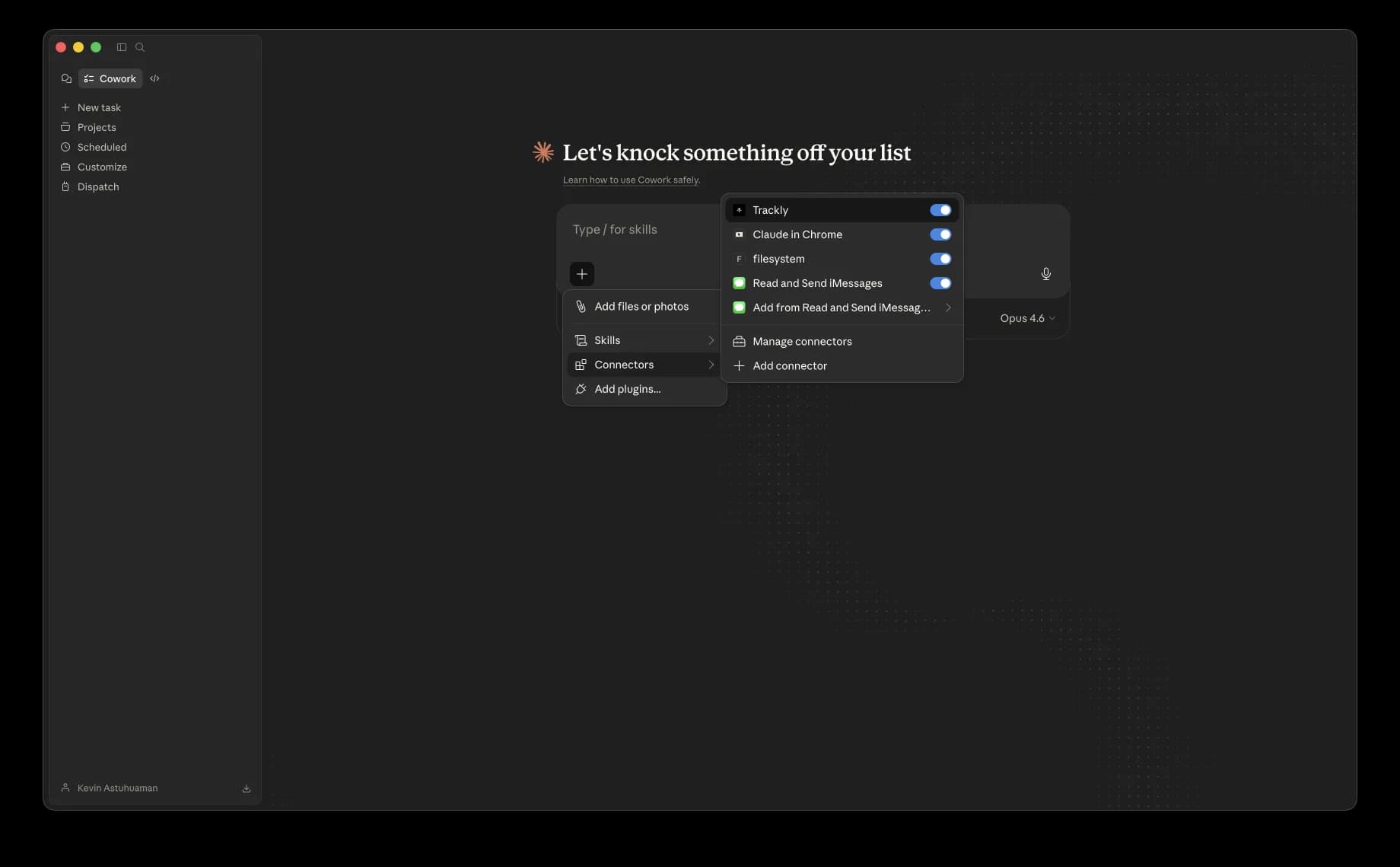
Open a Co-Work task, click the '+' button, select Connectors from the menu, and toggle Trackly on.
Start Using Trackly
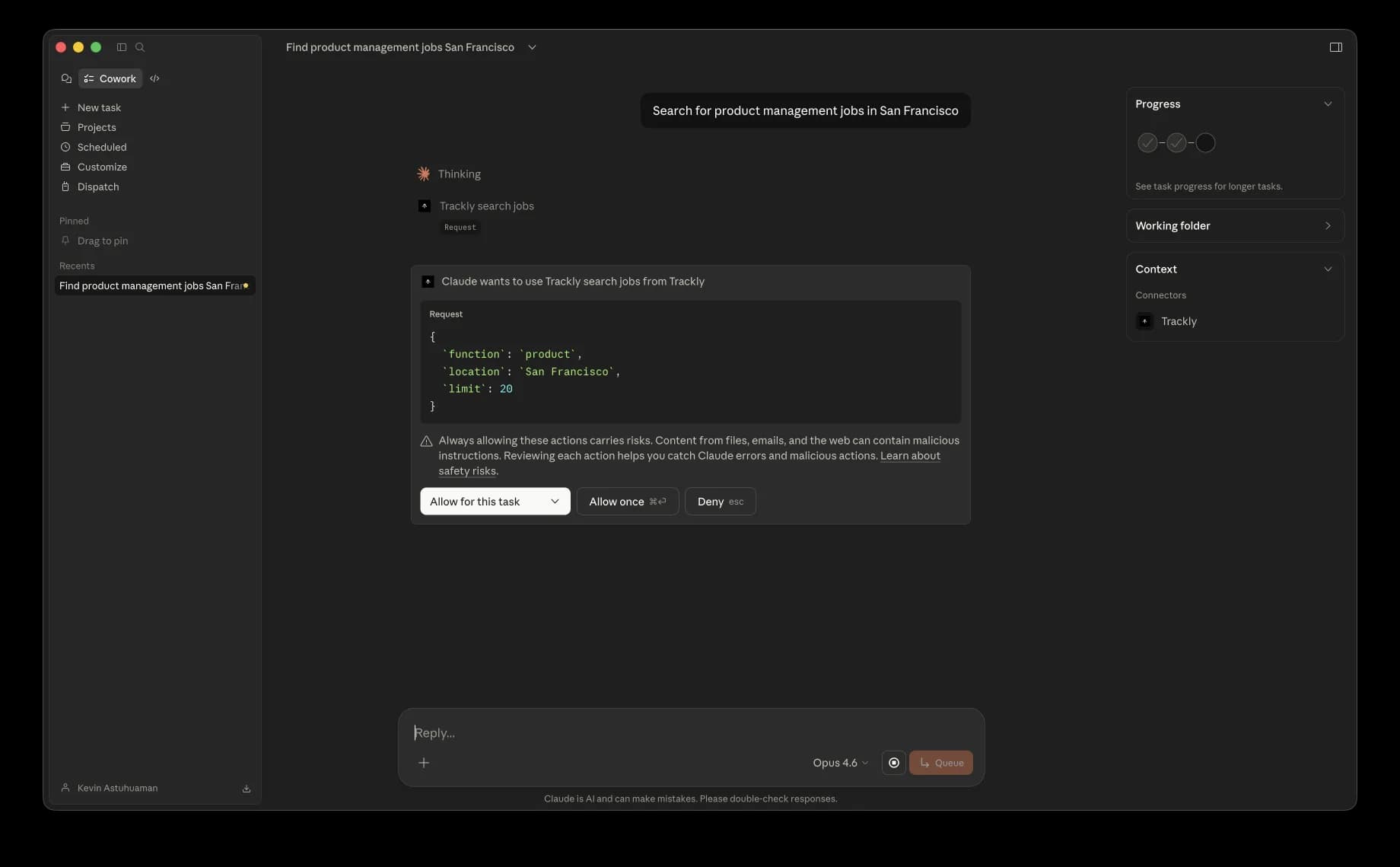
Ask Claude anything about jobs. Try: 'Search for product management jobs in San Francisco'. The first time Claude uses a Trackly tool in the task, it asks for permission.
See Your Results
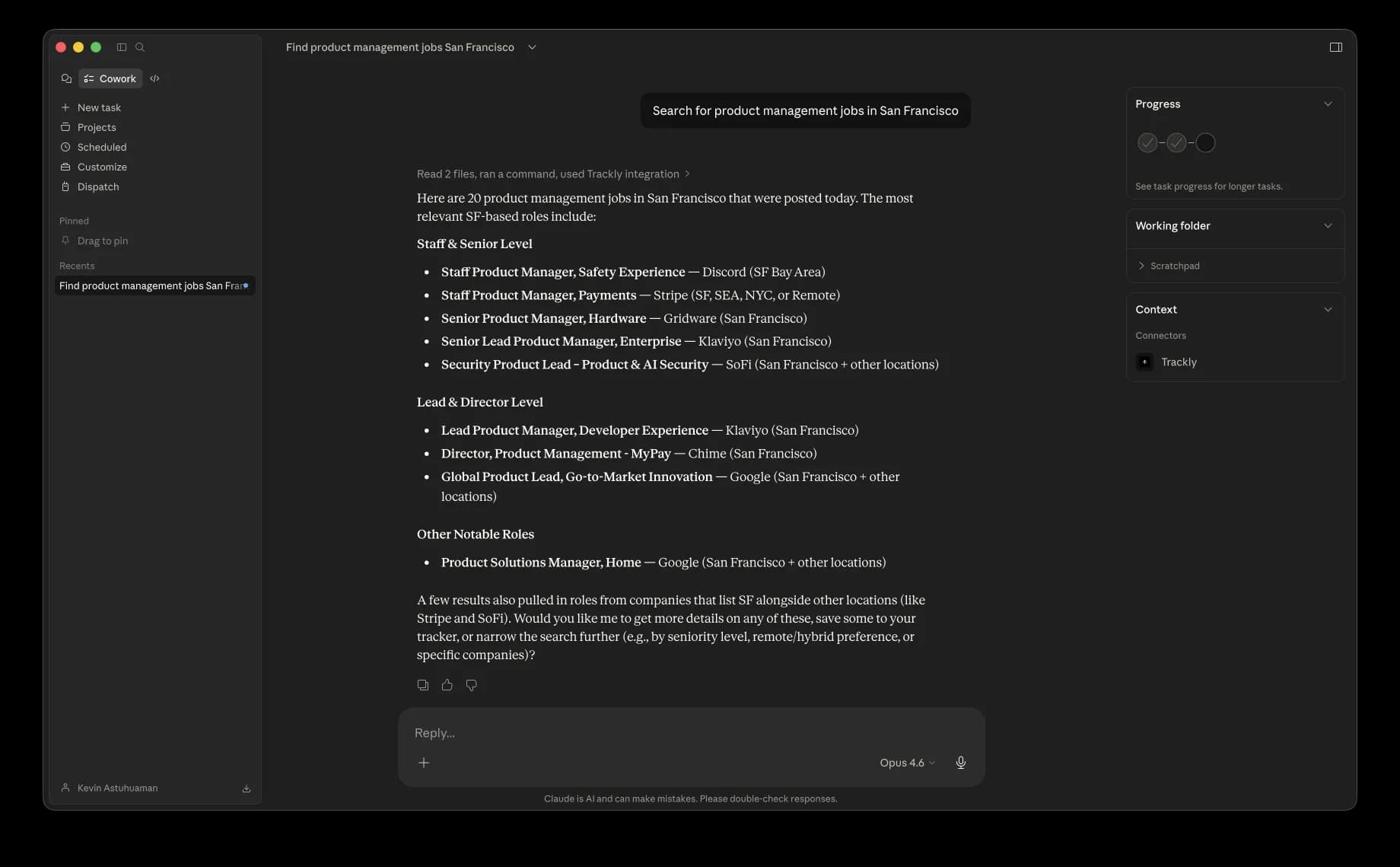
Claude returns structured job results organized by seniority, with company names, locations, and role details.
Prefer the CLI? Install the Trackly CLI + MCP Server
Read the full announcement on the changelog